Vagrant VirtualBox
git pull https://github.com/kodekloudhub/certified-kubernetes-administrator-course
finalize Node Count, Node CPU, Node Memory & Node OS in Vagrantfile
vagrant up certified-kubernetes-administrator-course/tree/master/kubeadm-clusters/virtualbox
*** All nodes ***
vagrant ssh all three nodes
make sure /etc/hosts and /etc/environment are created fine with reference to all node IPs
vagrant ssh node03 -c “ip a | grep ‘global dynamic eth1′”
controlplane: 192.168.29.188
node01 : 192.168.29.82
node02 : 192.168.29.88
node03 : 192.168.29.22
Kubernetes Cluster
Turn off swap immediately
sudo swapoff -aRemove or comment swap entry in /etc/fstab
sudo sed -i '/ swap / s/^(.*)$/#\1/' /etc/fstabVerify swap is disabled
free -mForwarding IPv4 and letting iptables see bridged traffic https://kubernetes.io/docs/setup/production-environment/container-runtimes/
Update the apt package index and install packages needed to use the Kubernetes apt repository:
sudo apt-get update
sudo apt-get install -y apt-transport-https ca-certificates curl
Set up the required kernel modules and make them persistent
cat <<EOF | sudo tee /etc/modules-load.d/k8s.conf
overlay
br_netfilter
EOF

sudo modprobe overlay
sudo modprobe br_netfilter
Set the required kernel parameters and make them persistent
# sysctl params required by setup, params persist across reboots
cat <<EOF | sudo tee /etc/sysctl.d/k8s.conf
net.ipv4.ip_forward = 1
net.ipv6.conf.all.forwarding = 1
net.bridge.bridge-nf-call-iptables = 1
net.bridge.bridge-nf-call-ip6tables = 1
EOF

# Apply sysctl params without reboot
sudo sysctl --system# Verify IPv4 and IPv6 forwarding
sysctl net.ipv4.ip_forward net.ipv6.conf.all.forwarding
# Verify bridge filter settings
sysctl net.bridge.bridge-nf-call-iptables net.bridge.bridge-nf-call-ip6tablesInstall ContainerD in all three nodes https://docs.docker.com/engine/install/ubuntu/
sudo apt-get install -y containerdConfiguring the systemd cgroup driver https://gjhenrique.com/cgroups-k8s/
sudo mkdir -p /etc/containerd
containerd config default | sed 's/SystemdCgroup = false/SystemdCgroup = true/' | sudo tee /etc/containerd/config.toml

# Verify
cat /etc/containerd/config.toml | grep SystemdCgroupsudo systemctl restart containerdInstall kubeadm, kubelet and kubectl https://kubernetes.io/docs/setup/production-environment/tools/kubeadm/install-kubeadm/
# /etc/environment
PRIMARY_IPV4=192.168.29.31
PRIMARY_IPV6=2405:201:202d:70b2::31
PRIMARY_IP=192.168.29.31,2405:201:202d:70b2::31
Make sure PRIMARY_IP is node IP address, which is unique for all nodes.
cat <<EOF | sudo tee /etc/default/kubelet
KUBELET_EXTRA_ARGS="--node-ip=${PRIMARY_IP}"
EOF
*** Only in controlplane ***
# Pods get their own unique IPv6 range
POD_CIDR="10.244.0.0/16,fd24:4::/64"

# Services get their own unique IPv6 range
SERVICE_CIDR="10.96.0.0/16,fd96::/108"
Init kubeadm https://kubernetes.io/docs/setup/production-environment/tools/kubeadm/create-cluster-kubeadm/
If skip install kube-proxy for Cilium CNI, after kubeadm init check kube-proxy pods are created or not.
sudo kubeadm init --pod-network-cidr $POD_CIDR --service-cidr $SERVICE_CIDR --apiserver-advertise-address $PRIMARY_IPV4

# Below is for Cilium CNI
# --skip-phases=addon/kube-proxymkdir ~/.kube
sudo cp /etc/kubernetes/admin.conf ~/.kube/config
sudo chown $(id -u):$(id -g) ~/.kube/config
chmod 600 ~/.kube/configThis should be done after CNI installation. Join worker nodes to cluster.
kubeadm token create --print-join-command
sudo kubeadm join 192.168.29.x:6443 --token <token> --discovery-token-ca-cert-hash
Cilium CNI
CILIUM_CLI_VERSION=$(curl -s https://raw.githubusercontent.com/cilium/cilium-cli/main/stable.txt)
CLI_ARCH=amd64
if [ "$(uname -m)" = "aarch64" ]; then CLI_ARCH=arm64; fi
curl -L --fail --remote-name-all https://github.com/cilium/cilium-cli/releases/download/${CILIUM_CLI_VERSION}/cilium-linux-${CLI_ARCH}.tar.gz{,.sha256sum}
sha256sum --check cilium-linux-${CLI_ARCH}.tar.gz.sha256sum
sudo tar xzvfC cilium-linux-${CLI_ARCH}.tar.gz /usr/local/bin
rm cilium-linux-${CLI_ARCH}.tar.gz{,.sha256sum}

cilium versioncilium install --version 1.18.5 \
--set ipv4.enabled=true \
--set ipv6.enabled=true \
--set kubeProxyReplacement=true \
--set k8sServiceHost=$PRIMARY_IPV4 \
--set k8sServicePort=6443 \
--set ipam.operator.clusterPoolIPv4PodCIDRList='{10.244.0.0/16}' \
--set ipam.operator.clusterPoolIPv4MaskSize=24 \
--set ipam.operator.clusterPoolIPv6PodCIDRList='{fd24:4::/48}' \
--set ipam.operator.clusterPoolIPv6NodeCIDRMaskSize=64 \
--set routingMode=native \
--set autoDirectNodeRoutes=true \
--set ipv4NativeRoutingCIDR="10.244.0.0/16" \
--set ipv6NativeRoutingCIDR="fd24:4::/48" \
--dry-run > cilium-dualstack.yaml
# When file is generated "ipam.operator.clusterPoolIPv6NodeCIDRMaskSize" becomes 120.
# Edit cilium-dualstack.yaml and search "cluster-pool-ipv6-mask-size" to update its value to 64 we passed.
kubectl apply -f cilium-dualstack.yaml
# Wait for all pods to be running and below status: Cilium: OK, Operator: OK & Envoy DaemonSet: OK
cilium status --wait
# Now join worker nodes
# After adding worker nodes it took around 13 mins for cluster to be runningCalico CNI
Information found here: https://docs.tigera.io/calico/latest/getting-started/kubernetes/self-managed-onprem/onpremises
# Step 1
kubectl create -f https://raw.githubusercontent.com/projectcalico/calico/v3.31.3/manifests/operator-crds.yaml
kubectl create -f https://raw.githubusercontent.com/projectcalico/calico/v3.31.3/manifests/tigera-operator.yaml

# Step 2: Select tab "iptables". Replace default IP with POD CIDR.
curl -LO https://raw.githubusercontent.com/projectcalico/calico/v3.30.3/manifests/custom-resources.yaml
Update the spec with below.
spec:
  calicoNetwork:
    ipPools:
    - name: default-ipv4-ippool
      blockSize: 26
      cidr: 10.244.0.0/16
      encapsulation: VXLANCrossSubnet
      natOutgoing: Enabled
      nodeSelector: all()
    - name: default-ipv6-ippool
      blockSize: 122
      cidr: fd24:4::/64
      encapsulation: None
      natOutgoing: Enabled
nodeSelector: all()# Step 3: Create the manifest to install Calico.
kubectl create -f custom-resources.yaml
# Step 4: Wait till all the Calico components display True in the AVAILABLE column.
watch kubectl get tigerastatusBelow issue was caused, showing calico as degraded due to control plane IP set in all nodes “/etc/default/kubelet” file. Also one of the node had typo in IP address.
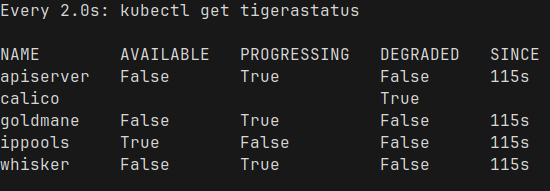
Below shows issue fixed. I updated all nodes “/etc/default/kubelet” file to have their own node IP, fixed typo and restart kubelet service.
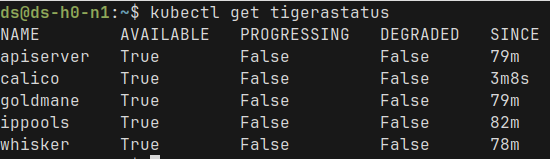
Took around 6 minutes for all to be running
MetalLB Load Balancer
Join all worker nodes to the cluster before implementing load balancer.
https://metallb.universe.tf/configuration
kubectl apply -f https://raw.githubusercontent.com/metallb/metallb/v0.15.3/config/manifests/metallb-native.yamlsudo systemctl daemon-reloadWait for all pods to be in running state.
# ipaddresspool.yaml

apiVersion: metallb.io/v1beta1
kind: IPAddressPool
metadata:
  name: dual-stack-pool
  namespace: metallb-system
spec:
  addresses:
    - 192.168.29.241-192.168.29.250
- 2405:201:202d:70b2::241-2405:201:202d:70b2::250kubectl apply -f ipaddresspool.yaml# l2advertisement.yaml
apiVersion: metallb.io/v1beta1
kind: L2Advertisement
metadata:
name: l2-adv
namespace: metallb-system
spec:
ipAddressPools:
- dual-stack-poolkubectl apply -f l2advertisement.yamlHelm
https://helm.sh/docs/intro/install#from-apt-debianubuntu
sudo apt-get install curl gpg apt-transport-https --yes
curl -fsSL https://packages.buildkite.com/helm-linux/helm-debian/gpgkey | gpg --dearmor | sudo tee /usr/share/keyrings/helm.gpg > /dev/null
echo "deb [signed-by=/usr/share/keyrings/helm.gpg] https://packages.buildkite.com/helm-linux/helm-debian/any/ any main" | sudo tee /etc/apt/sources.list.d/helm-stable-debian.list
sudo apt-get update
sudo apt-get install helm
F5 NGINX Ingress Controller
helm repo add nginx-stable https://helm.nginx.com/stable
helm repo update

helm install nginx-ingress nginx-stable/nginx-ingress \
  --namespace nginx-ingress \
  --create-namespace \
  --set controller.ingressClass.name=nginx \
  --set controller.ingressClass.controllerValue=nginx.org/ingress-controller \
  --set controller.watchIngressWithoutClass=false \
--set controller.service.type=LoadBalancerkubectl get pods -n nginx-ingress
kubectl get svc -n nginx-ingresskubectl patch svc nginx-ingress-controller \
-n nginx-ingress \
-p '{
"spec": {
"ipFamilyPolicy": "PreferDualStack",
"ipFamilies": ["IPv4", "IPv6"]
}
}'IPv6 is not accessible from the control plane. IPv4 accessible from everywhere.
SSL cert-manager
kubectl apply -f https://github.com/cert-manager/cert-manager/releases/download/v1.19.2/cert-manager.yamlkubectl get pods -n cert-manager# letsencrypt-prod.yaml
apiVersion: cert-manager.io/v1
kind: ClusterIssuer
metadata:
name: letsencrypt-prod
spec:
acme:
email: amit@kahanit.com
server: https://acme-v02.api.letsencrypt.org/directory
privateKeySecretRef:
name: letsencrypt-prod-key
solvers:
- http01:
ingress:
class: nginxkubectl apply -f letsencrypt-prod.yaml
kubectl get clusterissuerTry out!
kubectl create deploy nginx --image nginx --replicas=2
kubectl expose deploy nginx --port 80 --name=nginx
Check need to create a certificate before creating ingress. Verify secret, certificate & auto verification ingress.
# certificate-nginx.yaml

apiVersion: cert-manager.io/v1
kind: Certificate
metadata:
  name: syncroze-tls
spec:
  dnsNames:
  - syncroze.com
  privateKey:
    rotationPolicy: Always
  issuerRef:
    kind: ClusterIssuer
    name: letsencrypt-prod
secretName: syncroze-tlskubectl apply -f certificate-nginx.yaml
# Certificate takes aroung 30 seconds to become READY TRUE, initially READY FALSE.
kubectl get certificate
kubectl describe certificate
kubectl get secret syncroze-tls# ingress-nginx.yaml
apiVersion: networking.k8s.io/v1
kind: Ingress
metadata:
name: ingress-nginx
annotations:
cert-manager.io/cluster-issuer: letsencrypt-prod
nginx.org/ssl-redirect: "true"
nginx.org/rewrites: "serviceName=nginx rewrite=/"
spec:
ingressClassName: nginx
tls:
- hosts:
- syncroze.com
secretName: syncroze-tls
rules:
- host: syncroze.com
http:
paths:
- path: /
pathType: Prefix
backend:
service:
name: nginx
port:
number: 80kubectl apply -f ingress-nginx.yamlAfter above domain SSL is applied. https://www.ssllabs.com/ssltest/analyze.html?d=syncroze.com
Vagrant
sudo cp /etc/kubernetes/admin.conf /vagrant/
This will copy admin.conf to folder where “Vagrantfile” is located
In host where “Vagrantfile” is located
sudo apt update
sudo apt install -y kubectlmkdir -p $HOME/.kube
mv ./admin.conf $HOME/.kube/config
chmod 600 $HOME/.kube/configtmux
start copy mode: ctrl + b, [
take cursor to start of selection
start selection: ctrl + space
end key to select till end
copy and end copy mode: ctrl + w
past selection: ctrl + b, ]